 Log in

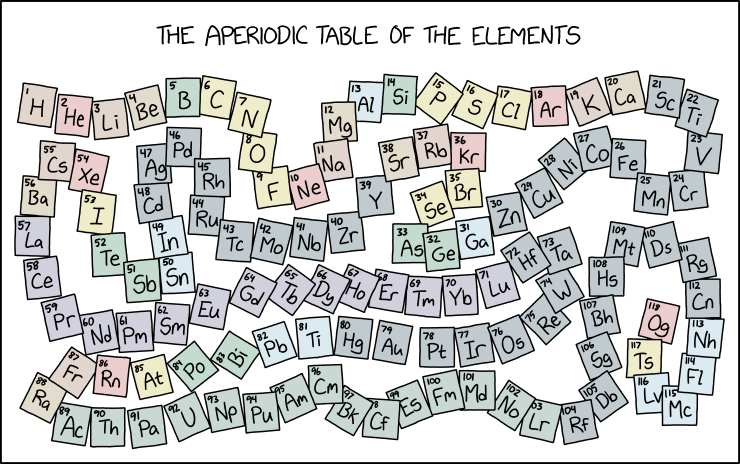

"Scientists occasionally invent alternative periodic table layouts, which is usually a sign that they don't have enough enrichment in their enclosures."
Sydney, Australia


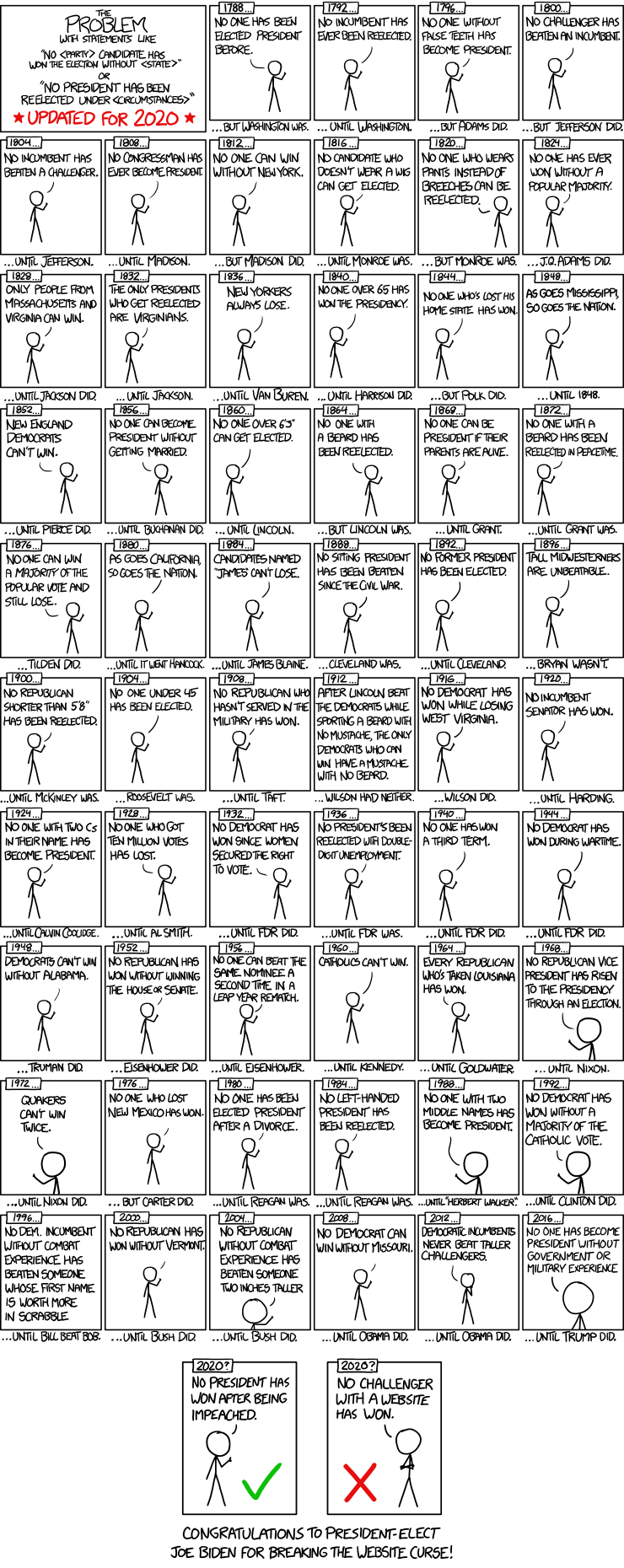
wow. So Obama didn't have a website in 2008? The (recent) past is a foreign country.
Sydney, Australia

1 public comment


He also broke the streak that incumbents with websites are unbeatable and Delawareans can't win, creating a new precedent: Only someone from Delaware can defeat an incumbent with a website.

Has this ever happened to you?
You're hard at work
blasting zombies being super-productive
with a program that has an always-on-top fullscreen window.
And then the program hangs.
How can you get to Task Manager so you can kill the hung program?
One way to do this is to launch Task Manager and use keyboard accelerators to get it to be always-on-top:
- Hit Ctrl+Alt+Del and say that you want to run Task Manager. Task Manager will run, but it's covered by the always-on-top fullscreen window.
- Whenever you need to see Task Manager, use Alt+Tab to select Task Manager and hold the Alt for a few seconds. This will give you a preview of Task Manager so you can see what state it is in. You can't interact with it, but you can at least see it.
- If Task Manager is in compact mode, then press Alt+D to get out of compact mode into details mode. If you're the sort of person who likes to open Task Manager a lot, you are probably already in details mode.
- Type Alt+O followed by Alt+D to enable Always on Top.
You now have an always-on-top Task Manager, and you can now use it to select the hung program and terminate it.
But here's a shortcut: Use virtual desktops.
- Press Win+Tab to call up the switcher.
- Click the + to create a new virtual desktop. This gives you a clean desktop with nothing on it. In particular, the hung application is not on this desktop.
- Run Task Manager on this new virtual desktop and use it to terminate the hung program.
useful advice for buggy games
Sydney, Australia


 reply
reply


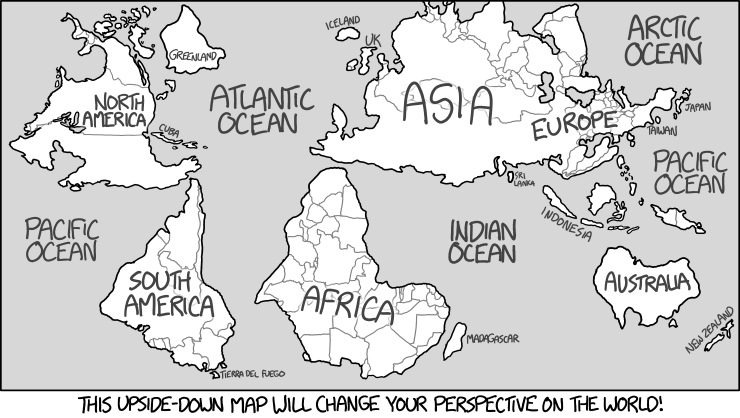
Alt: "Due to their proximity across the channel, there's long been tension between North Korea and the United Kingdom of Great Britain and Southern Ireland."
Sydney, Australia
9 public comments
I love crazy maps so hard.
Portland, Oregon
Test

Heh, this one reads like a Clickhole article.
East Helena, MT

The folks in Vancouver and Seattle taking a ferry over to Cuba is distinctly unfair.
Nashville, Tennessee
ZOMG! Imagine the "Global Climate Change" (tm)! The cold places are warm. The warm places are cold. Polar bears swimming in equatorial waters! The stone heads of Easter Island pointing the opposite direction!
Florida
Due to their proximity across the channel, there's long been tension between North Korea and the United Kingdom of Great Britain and Southern Ireland.
I love how Japan is so close to spain and that UK must now fear for Kim Jong Un nuclear alert :p


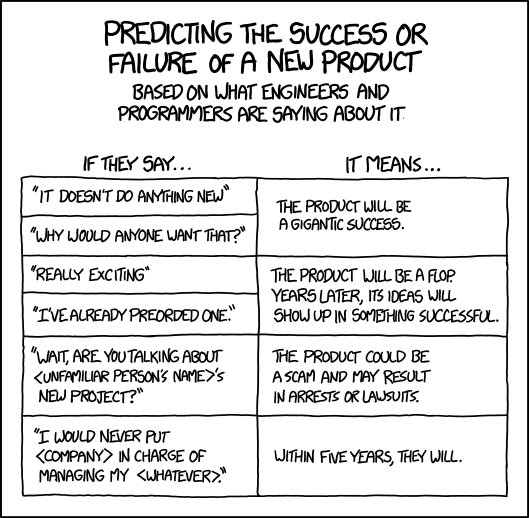

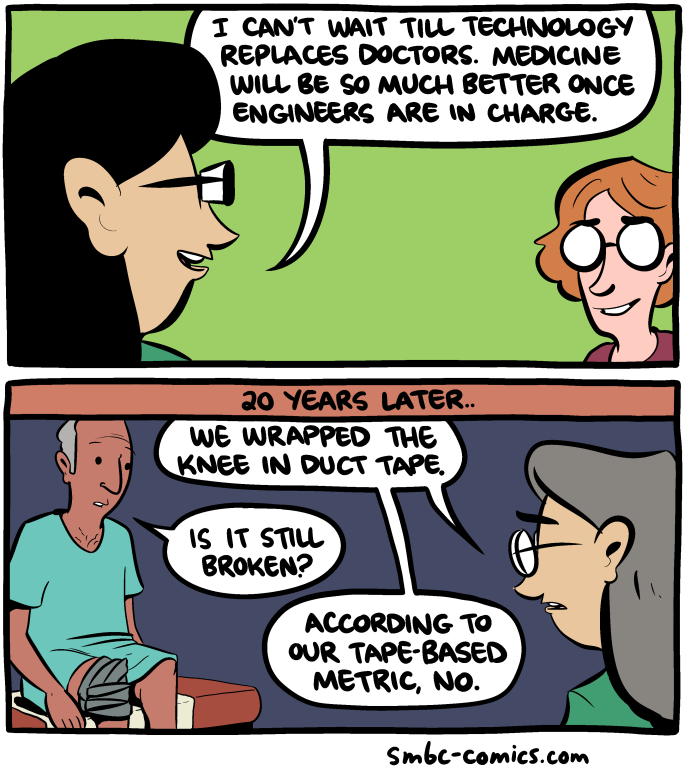
Alt: If you ever hear "Wait, is that Kim Dotcom's new project? I'm really excited about it and already signed up, although I'm a little nervous about whether everyone should hand over control of their medical...", it's time to dig a bunker in your backyard.
Sydney, Australia

3 public comments

100% truth
Bartlett, IL
If you ever hear "Wait, is that Kim Dotcom's new project? I'm really excited about it and already signed up, although I'm a little nervous about whether everyone should hand over control of their medical...", it's time to dig a bunker in your backyard.
Next Page of Stories